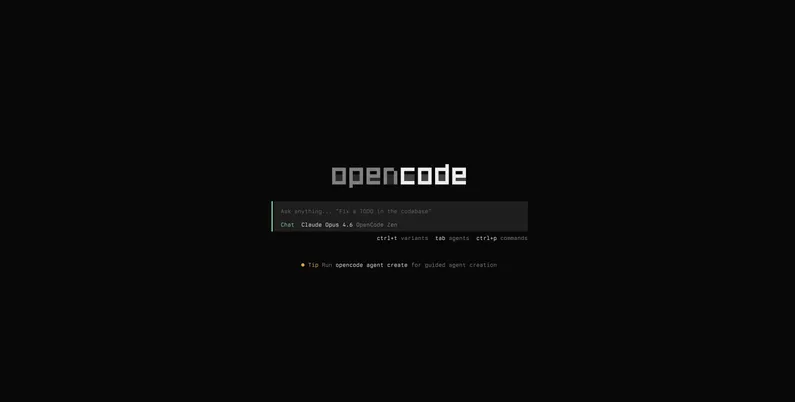
How to Build an SEO Content Agent with OpenCode
Most AI content reads like it was written by a robot pretending to be a human. You can spot it from a mile away. The same filler phrases, the same structure, the same lack of anything genuinely useful.
That’s not because AI can’t write well. It’s because most people use it wrong.
They open ChatGPT, type “write me a blog post about X,” and accept whatever comes back. No context about their business. No guidelines for tone. No instructions about what to avoid. The AI has nothing to work with, so it defaults to generic output.
There’s a better way. And it involves giving AI the right instructions before you ever write a single prompt.
This guide walks you through setting up OpenCode — an open source AI coding agent — and configuring a custom SEO agent that writes content tailored to your business. For our SEO services clients, our team writes the content by hand. But for clients who don’t opt for SEO, this agent setup is how we produce blog posts and website copy efficiently.
By the end, you’ll have a working SEO agent that understands your brand, researches competitors, and writes content that actually sounds human.
What Is OpenCode?
OpenCode is an open source AI coding agent built for developers, but its agent system makes it useful for much more than writing code. It supports Claude, GPT, Gemini, and dozens of other models through a single interface.
What makes OpenCode different from ChatGPT or Claude’s web interfaces is its agent system. You can create specialized agents with custom instructions, tool permissions, and workflows that persist across sessions. Instead of pasting the same system prompt every time, you configure it once and it’s always ready.
OpenCode is available as a terminal interface (TUI), a desktop app, and even IDE extensions. It has over 95,000 GitHub stars and a large open source community behind it. You can learn more on the OpenCode homepage.
Choosing Between the Terminal and Desktop App
OpenCode offers two main ways to interact with it, and the right choice depends on your comfort level.
The terminal interface (TUI) is the original experience. If you already spend time in a terminal and know basic commands like cd, ls, and mkdir, the TUI will feel natural. It’s fast, lightweight, and keyboard-driven. You switch between agents by pressing Tab, reference files with @, and run shell commands by starting a message with !.
The desktop app gives you the same functionality wrapped in a graphical interface. It’s currently in beta for macOS, Windows, and Linux. If terminals make you uncomfortable, this is your path. You get a familiar chat-like interface with a dropdown selector near the prompt input to switch between agents.
Both options run the same engine underneath. Pick whichever fits your workflow and don’t overthink it.
Installing OpenCode
The install process is the same for macOS and Linux. Windows has its own set of options.
macOS and Linux
The fastest way to install is with the install script:
curl -fsSL https://opencode.ai/install | bashYou can also install through a package manager:
# Homebrew (recommended for macOS and Linux)brew install anomalyco/tap/opencode
# npmnpm install -g opencode-ai
# Bunbun install -g opencode-aiWindows
For the best experience on Windows, the OpenCode team recommends using Windows Subsystem for Linux (WSL). If you go that route, follow the macOS/Linux instructions above inside your WSL terminal.
If you’d rather stay native, these options work:
# Chocolateychoco install opencode
# Scoopscoop install opencode
# npmnpm install -g opencode-aiDesktop App
If you chose the desktop route, you can install it with Homebrew on macOS:
brew install --cask opencode-desktopOr download the installer directly from the OpenCode download page. Builds are available for macOS (Apple Silicon and Intel), Windows (x64), and Linux (.deb and .rpm).
Once installed, run opencode in your terminal or launch the desktop app. You’ll need to configure an LLM provider before using it. The /connect command in the TUI walks you through this, or you can manually set API keys for providers like Anthropic, OpenAI, or Google.
If you already pay for Claude Pro, GitHub Copilot, or ChatGPT Plus, you can authorize OpenCode with that existing subscription. No extra plan needed. Check the OpenCode provider docs for setup instructions specific to your provider.
Setting Up the SEO Agent
OpenCode lets you create custom agents using simple Markdown files. Each file defines what the agent does, what tools it can access, and the system prompt that shapes its behavior.
You have two choices for where to store your agent: globally or per project.
Global vs. Per-Project Agents
A global agent lives in ~/.config/opencode/agents/ and is available in every project you open with OpenCode. A per-project agent lives in .opencode/agents/ inside a specific project and only works there.
Both approaches have tradeoffs.
Global agents make sense when the agent’s purpose isn’t tied to a single codebase. An SEO writing agent fits this perfectly. You want the same writing guidelines and research workflow regardless of which client project you’re working in. You set it up once and it’s there whenever you need it.
Per-project agents make sense when the agent needs project-specific instructions that would be irrelevant elsewhere. A code reviewer tuned to a specific framework, for example, or a deployment agent configured for one particular infrastructure setup.
For our SEO agent, global is the better choice. The writing philosophy, the banned AI phrases, the research workflow — none of that changes between projects. What does change is the client information, and we handle that differently (more on that shortly).
Installing the Agent File
We’ve published the SEO agent file that we use at Flat6 Solutions. You can download it and drop it into your global agents directory.
Save that file to:
~/.config/opencode/agents/seo.mdIf the agents directory doesn’t exist yet, create it:
mkdir -p ~/.config/opencode/agentsThen move or copy the downloaded file:
cp ~/Downloads/seo.md ~/.config/opencode/agents/seo.mdImportant: If OpenCode was already running when you added the file, you’ll need to close and reopen it. The agent system reads configuration files on startup.
Once OpenCode restarts, you’ll see the SEO agent available. In the TUI, press Tab to cycle through agents until you reach it. In the desktop app, use the agent dropdown selector next to the prompt input box.
What the SEO Agent Actually Does
The agent file isn’t just a system prompt. It’s a complete workflow configuration that changes how the AI approaches content creation. Here’s what’s going on inside it.
Frontmatter Configuration
The top of the file contains YAML frontmatter that configures the agent’s behavior within OpenCode:
description: SEO Agent - Human-Like Content Creatormode: primarycolor: "#F5A742"permission: bash: "git diff*": allow "git log*": allow "git status*": allow "git branch": allow "*": ask edit: ask write: ask webfetch: allow websearch: allowThe mode: primary setting means this agent appears in your Tab rotation alongside Build and Plan. The color gives it a distinct visual identity in the interface.
The permissions are intentional. Read-only git commands are allowed automatically so the agent can understand your project’s state. But file edits and writes require your approval — you always get final say on what gets changed. Web fetching and searching are allowed freely because the agent needs to research competitors and verify facts.
Human-Like Writing Rules
The core of the agent is a set of strict writing guidelines. It enforces short paragraphs (2-4 sentences max), varied sentence lengths, and a conversational but professional tone.
More importantly, it maintains a blacklist of phrases and patterns that immediately flag content as AI-generated. Things like “In today’s digital landscape,” “Let’s dive in,” excessive use of “Moreover” and “Furthermore,” and the habit of ending every section with a summary statement that just repeats what was already said.
These rules aren’t suggestions. The agent treats them as hard constraints on every piece of content it writes.
Client Discovery Workflow
Before writing anything, the agent automatically searches for client information in your project. It looks for files named CLIENT.md, CLIENT-QUESTIONNAIRE.md, or similar patterns in your project root.
This is the key advantage over using ChatGPT or Claude directly. You don’t need to paste your business details into every conversation. The agent finds them, reads them, and uses that context to shape everything it writes.
If it can’t find enough information about the business — name, industry, services, target audience, value proposition — it stops and asks you rather than writing generic content. That’s by design.
SERP Research and Competitive Analysis
The agent doesn’t just write from its training data. Before creating content, it uses web search and web fetch tools to analyze the top-ranking pages for your target keyword. It looks at what topics competitors cover, identifies content gaps, and checks for current statistics and trends.
This research step means the content it produces is grounded in what’s actually ranking right now, not what worked two years ago.
It Picks Up Your Project Patterns
The agent doesn’t just write copy. It reads your existing codebase and replicates the technical patterns it finds. If you’re using Plausible analytics events to track phone calls or online bookings, the agent notices that and implements the same tracking on new pages. If you have breadcrumbs, schema markup, or a specific file structure, it carries those forward without being told.
That means less time wiring up the technical details after the content is written, which used to be the tedious part.
Single-File Output
One more detail worth knowing: the agent is configured to produce exactly one file per request. No separate SEO analysis documents, no implementation plans, no supporting files. You ask for a blog post, you get a blog post. Clean and focused.
Related reading: Why Every Business Needs a Blog in 2025 — if you’re wondering whether investing in content is worth it, this covers the compounding SEO benefits of consistent publishing.
Using the SEO Agent on a Real Project
Here’s the practical workflow. Open OpenCode inside your project directory.
Step 1: Create a Client File
Before your first prompt, create a CLIENT.md file in the root of your project. This is where you describe the business the content is for. The more detail you provide, the more accurate the agent’s output will be.
Here’s a basic structure to start with:
# Client Information
## Business- Name: Your Business Name- Industry: Web design and SEO- Location: Clearwater, FL
## Services- Custom website development- Search engine optimization- Content strategy
## Target Audience- Small business owners- Local service providers- Companies looking to improve online presence
## Brand Voice- Professional but approachable- Direct and honest- No jargon or fluff
## Differentiators- Hand-coded websites (no WordPress templates)- Transparent pricing- Local focus on Tampa Bay areaFill this in with real details about the business. The agent reads this file before writing anything, so it understands the brand without you having to explain it every time.
Step 2: Switch to the SEO Agent
In the TUI, press Tab until you see the SEO agent indicator (it’ll show the green color you saw in the config). In the desktop app, click the agent dropdown near the prompt input and select it.
Step 3: Start Prompting
You don’t need to explain who the business is or what tone to use. The agent already knows from the client file and its built-in guidelines. Just describe what you want.
Write a blog post targeting the keyword "best roofing contractor Tampa" forour client. Focus on what homeowners should look for when hiring a rooferand why local contractors are a better choice than national chains.The agent will research the keyword, analyze competitors, and write the post — all following the human-like writing guidelines and SEO best practices baked into its configuration.
You can also point it at existing pages as a structural reference. If you’ve already written a service page you’re happy with, tell the agent to use it as a template for the new one. Something like: “Use the dryer repair page as a reference for structure and tone.” The agent reads those files, picks up your patterns, and produces something consistent with what you’ve already published.
Step 4: Review and Approve
Because the agent’s write permissions are set to “ask,” it won’t save the file without your approval. You’ll see the content in the conversation and get prompted before any file is created or modified. This gives you a chance to request changes before anything hits your codebase.
Step 5: Proofread and Tweak
The agent gets you about 90-95% of the way there. The remaining work is reading through the content and making small adjustments. Maybe it referenced a city your client doesn’t serve. Maybe a technical detail needs correcting. Maybe an em-dash rendered as a weird character in your markup.
This is the part you can’t skip. Read the whole thing, fix what doesn’t sound right, and verify any specific claims. The whole process — from prompt to published — typically takes under five minutes once you’ve done it a few times. That’s a significant jump from writing everything from scratch, or even from the 50% you’d get using ChatGPT or Claude through their web interfaces.
Why This Is Better Than Using ChatGPT Directly
The difference comes down to consistency and context.
When you use ChatGPT or Claude through their web interfaces, every conversation starts from zero. You paste your instructions, explain your business, describe your tone, and hope the AI remembers it all while writing. If you need to write ten blog posts, you do that setup ten times.
There’s another problem that’s harder to notice. As you write more content in a single session, the context window fills up. By page three or four, the AI has the memory of a goldfish. It forgets the writing guidelines you gave it at the start. It doesn’t even know it’s supposed to be an SEO writer anymore. The quality drops and the output starts sounding generic again — exactly what you were trying to avoid.
With this OpenCode agent approach, the setup happens once. The writing rules are permanent. The client context is automatic. The research workflow is built in. Every new conversation starts with the full system prompt and client file loaded fresh, so the agent never loses track of what it’s supposed to do. You open your project, switch to the SEO agent, and start working.
Frequently Asked Questions
Do I need to know how to code to use this?
Not really. The desktop app gives you a graphical interface, and the setup involves copying one file to a folder. If you can download a file and move it to a directory, you can get this running.
Which AI model does this work with?
Any model that OpenCode supports — Claude, GPT, Gemini, and over 75 others. The agent configuration is model-agnostic. Though for SEO content, models like Claude Opus tend to produce the best results.
Can I customize the agent’s instructions?
Absolutely. The agent file is plain Markdown. Open it in any text editor and adjust the writing guidelines, banned phrases, or workflow steps to match your preferences. That’s the beauty of an open source tool.
Does it work offline?
The agent itself runs locally through OpenCode, but it needs internet access for two things: communicating with the AI model (unless you run a local model) and performing web research during the competitive analysis step.
Can I use this for client work?
That’s exactly what we built it for. The client discovery system is designed to adapt to different businesses across different projects. Each project gets its own CLIENT.md with relevant details, and the same global agent produces on-brand content for all of them.
Start Writing Content That Ranks
Good SEO content isn’t about gaming algorithms. It’s about answering real questions from real people and making sure search engines can find those answers.
This agent setup gives you a repeatable system for producing that kind of content. No more starting from scratch every session. No more AI-sounding copy that reads like it was generated in 30 seconds with zero context.
If you’d rather not manage any of this yourself, we handle SEO content strategy and blog writing for businesses that want results without the learning curve.
Talk to Us About SEO Content →
Downloads
Grab the files mentioned in this guide and get started right away.
- SEO Agent File (seo.md) — Drop this into
~/.config/opencode/agents/and you’re ready to go.


